Rydger Guides
Set up automatic ride tracking
Use iPhone Shortcuts to tell Rydger when your vehicle connects and disconnects. Start Ride and Stop Ride go directly inside the two personal automations; you do not create separate shortcuts.
- Reviewed:
- 31 July 2026
- Applies to:
- Rydger 1.1.1 or later and the current iOS Shortcuts app
Before you start
- Rydger Pro is active and the vehicle already exists in your garage.
- The vehicle's Bluetooth, helmet intercom, or CarPlay connection is paired in iOS.
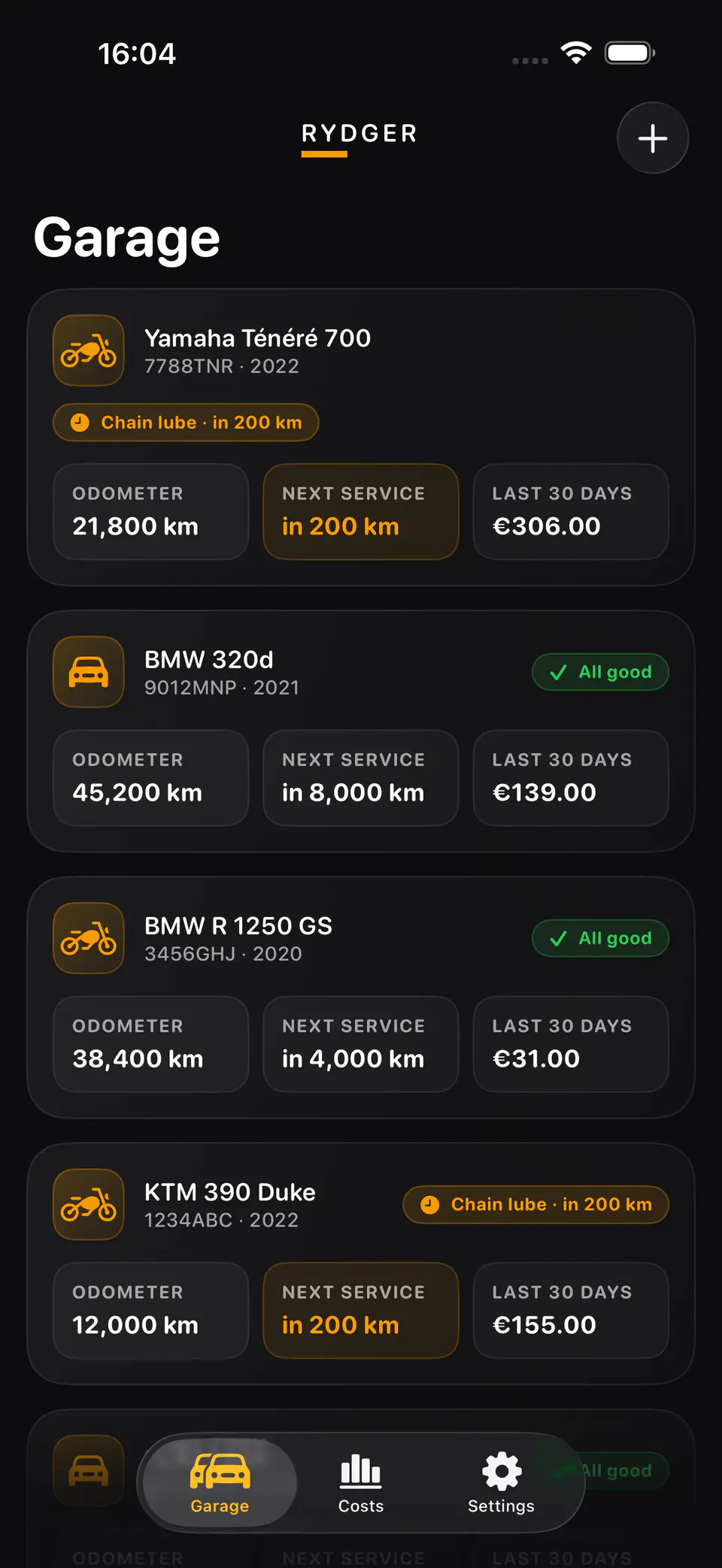
- In Rydger, open the vehicle, choose Tracking, and grant Location Access followed by Background Tracking. Location must show Always in iOS Settings.
- Keep Bluetooth and Location Services enabled on the iPhone.
1. Create the connection automation
This automation starts recording as soon as the vehicle connection appears.
- Open Shortcuts, choose Automation, tap +, and create a new Personal Automation.
- Choose Bluetooth and select the vehicle device, or choose CarPlay. Select Is Connected.
- Choose Run Immediately and turn off Notify When Run if iOS offers that option.
- Add an action inside this automation, search for Rydger, and choose Start Ride.
- For a Bluetooth trigger, set Vehicle explicitly to the vehicle you are configuring. For CarPlay, you may leave Vehicle unset only when that vehicle has Uses CarPlay enabled in Rydger.
- Save the automation. Do not save Start Ride as a separate shortcut.
If you have more than one vehicle, explicit vehicle selection is the safest choice. An unset CarPlay action resolves only when Rydger can identify one vehicle marked Uses CarPlay.
2. Create the disconnection automation
The second automation closes the same ride and updates the vehicle's odometer.
- Create another Personal Automation with the same Bluetooth device or CarPlay trigger.
- Select Is Disconnected and choose Run Immediately.
- Add Rydger's Stop Ride action directly inside the automation.
- Apply the same Vehicle choice used for Start Ride: select it explicitly for Bluetooth, or use the same CarPlay vehicle rule.
- Save the automation. Do not create or call a separate Stop shortcut.
Start Ride and Stop Ride must target the same vehicle. A mismatched Stop action cannot safely close another vehicle's ride.
3. Validate it while parked
Test the complete handoff before relying on it for a real journey.
- Park safely, unlock the iPhone, and open the vehicle's Tracking screen in Rydger.
- Connect the chosen Bluetooth device or CarPlay. Confirm the automation runs and Rydger shows a ride in progress.
- Lock the phone for a minute. Reopen Rydger and confirm the ride is still active, proving background tracking is available.
- Disconnect or turn off the vehicle. Allow about 30 seconds for the automation to run.
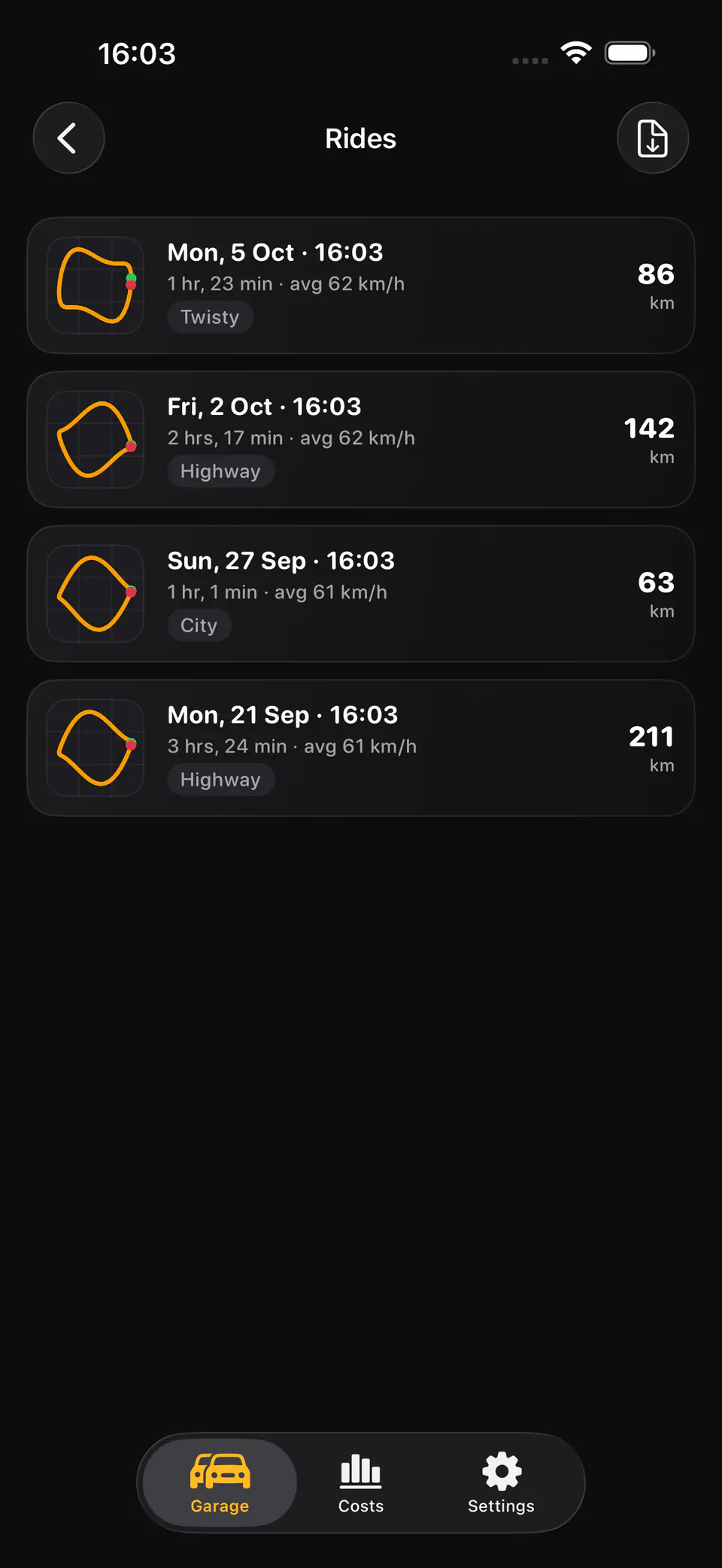
- Open Rydger and confirm the ride ended and appears in the vehicle's ride history. A parked test may show zero distance; the start and stop timestamps are what matter.
On your first real ride, compare Rydger's distance with the dashboard odometer. GPS distance always updates the odometer, while very short rides may stay hidden from the ride list according to your thresholds.
Troubleshooting
The automation asks before running
Edit both automations and select Run Immediately. A confirmation-based automation cannot provide hands-free tracking.
A ride starts but records no distance
In iOS Settings, confirm Rydger has Always location access and Precise Location is enabled. Return to Tracking in Rydger if Background Tracking still needs permission.
The wrong vehicle starts
Set Vehicle explicitly in both actions. Only leave it unset for CarPlay when exactly one intended vehicle has Uses CarPlay enabled in Rydger.
The ride does not stop
Check that the second trigger is Is Disconnected, contains Stop Ride directly, and targets the same vehicle. Use Stop Ride in Rydger's Tracking screen as the manual escape hatch.
Shortcuts cannot find Rydger actions
Open Rydger once after installing or updating it, then reopen Shortcuts and search again for Start Ride or Stop Ride.